Workspace Roles & Permissions — Everyone Gets Exactly the Access They Need
Three built-in roles and unlimited custom roles. Give each team member the minimum permissions their job requires — nothing more, nothing less.
Last updated: June 2026
Built-in roles
- ✓ Billing
- ✓ Delete workspace
- ✓ Manage team
- ✓ Edit any link
- ✓ All analytics
- ✗ Billing
- ✗ Delete workspace
- ✓ Manage team
- ✓ Edit any link
- ✓ All analytics
- ✗ Billing
- ✗ Delete workspace
- ✗ Manage team
- ✗ Edit any link
- ✓ Own analytics
+ create custom roles
Without role control
Everyone gets full access, or no access. Neither works.
Freelance designer has the same access as your senior marketer
Junior team member accidentally deletes a live campaign link
External analyst can see your billing details just to view reports
Client asks for access — you give them full workspace because there's no other option
With Revolink
Each person gets exactly what their job requires.
Clients get read-only analytics access — nothing else
Junior staff can create links but can't delete others' work
Contractors access only the features they need during the engagement
Role changes take effect immediately — no re-invite, no logout
Four permission groups
Every permission falls into one of four groups. Enable only what each role needs.
- Edit workspace settings
- Add & manage custom domains
- Manage tags
- View workspace activity
- View pending invitations
- Invite new members
- Remove members
- Change member roles
- Edit any team member's links
- Delete any team member's links
- View link activity log
- View analytics of all links
- Generate/reset conversion key
- View conversion tracking key
- View conversion statistics
Roles in the Revolink dashboard
Everything happens in Workspace Settings — no code, no configuration files.
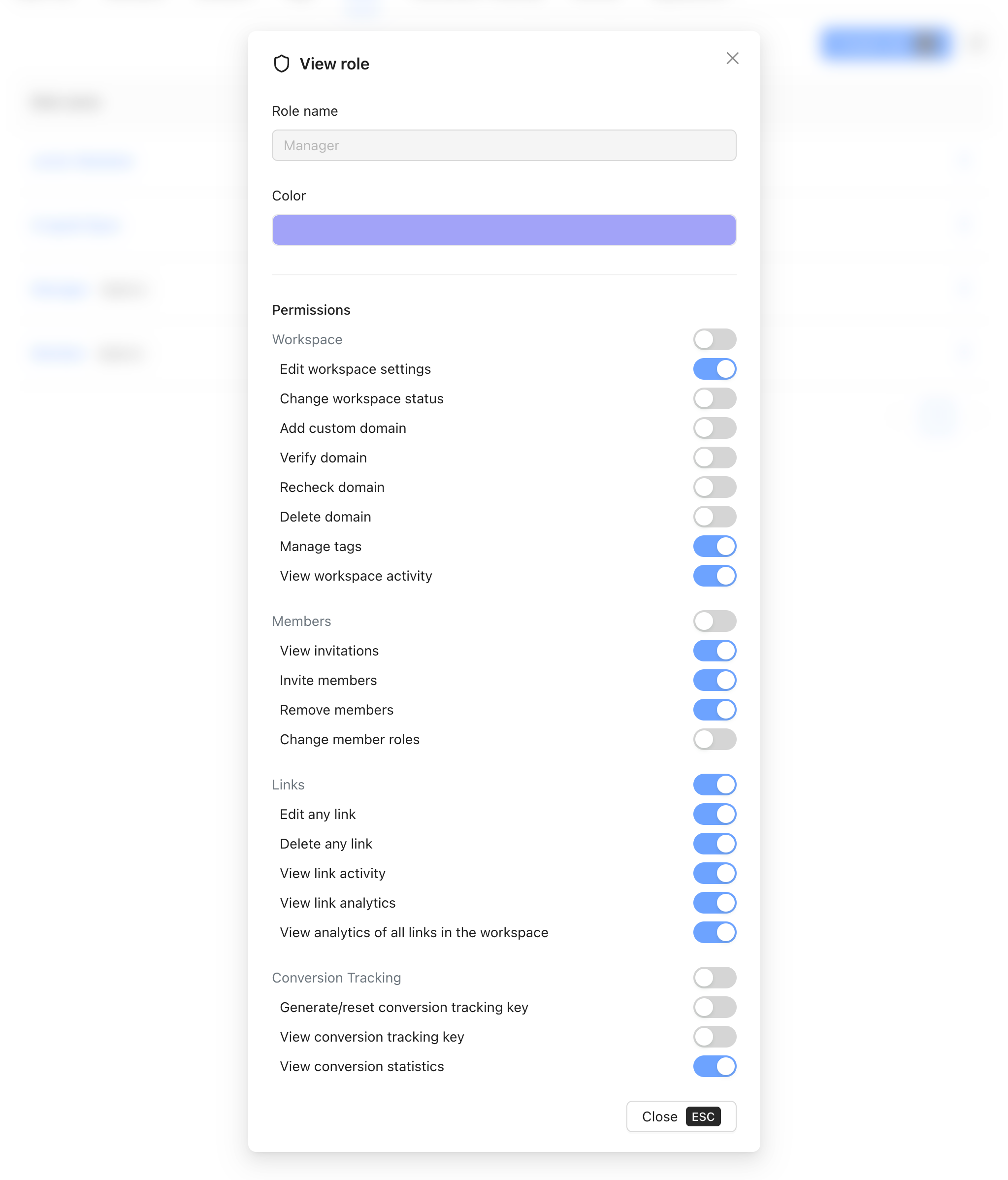
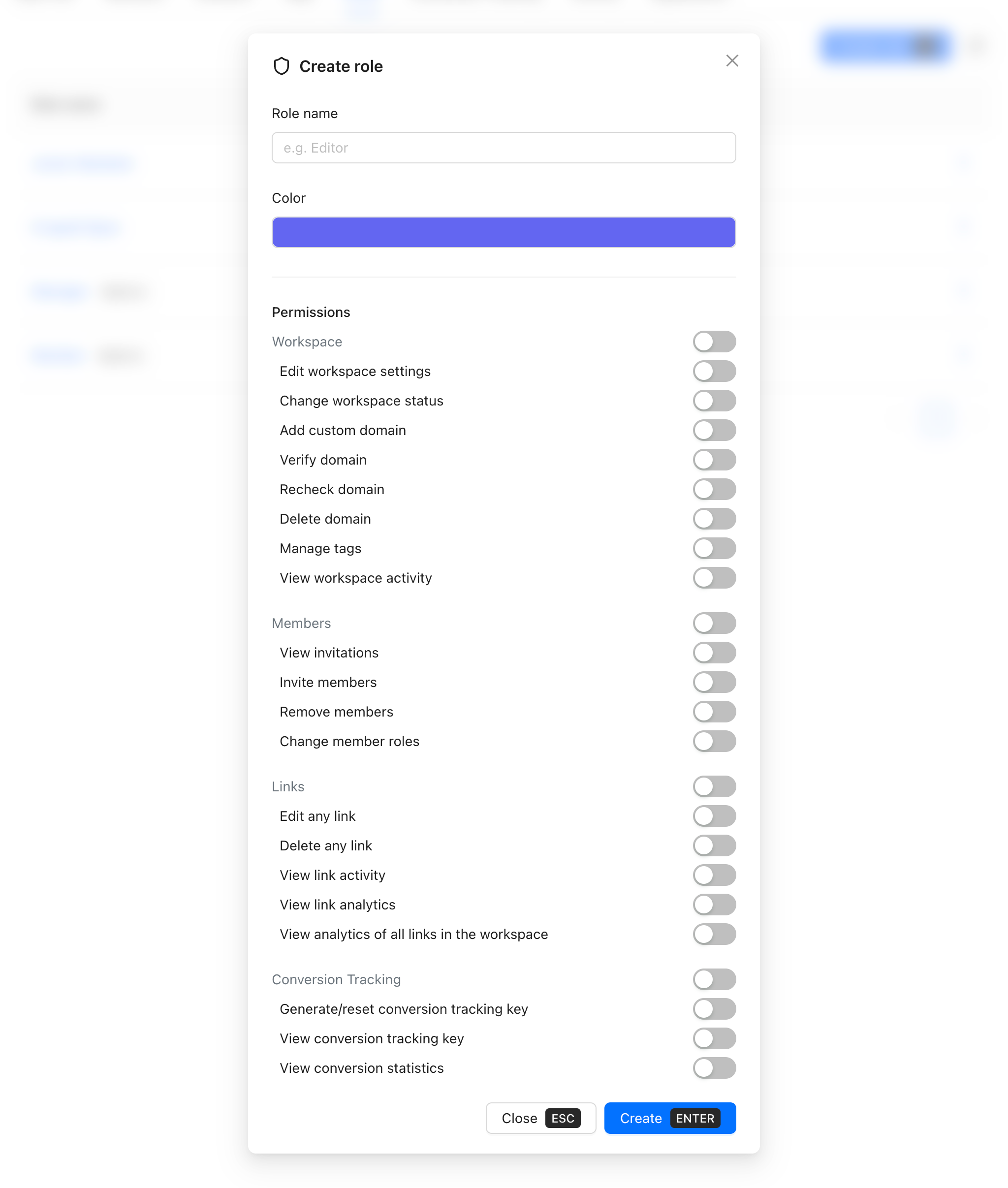

Create a custom role in 4 steps
Workspace Settings → Roles → Create role.
Go to Workspace Settings → Roles
Open the workspace menu and navigate to Settings → Roles. You'll see your existing roles — Owner, Manager, Member, and any custom roles you've created.
Click Create role
2 minGive it a name that describes what it does, not who holds it. "Campaign Editor", "Read-only Analyst", "Compliance Officer" are all good names. Pick a color so it's easy to identify in the members list.
Enable only the permissions it needs
All toggles start off. Enable exactly what this role requires across the four groups: Workspace, Members, Links, and Conversion Tracking. Save.
Assign it from the Members tab
InstantGo to Workspace Settings → Members, click the current role badge for any member, and select the new role. The change takes effect immediately — no logout required.
Custom role examples
Three real-world role configurations and what they enable.
Digital agencies
Client gets view-only access to their own campaign data
Read-only Analyst (custom)
Client sees their campaign performance without touching any link configuration or other clients' data
SaaS teams with junior staff
Junior marketer can work on links but can't delete or manage team
Junior Marketer (custom)
Junior staff can create and edit their own links, view stats — but can't delete other people's work or change settings
Compliance-heavy organizations
Compliance officer needs full visibility but zero write access
Compliance Officer (custom)
Full read-only visibility into everything — team events, link changes, analytics — without the ability to modify anything
3
Built-in default roles
4
Permission groups (Workspace, Members, Links, Conversions)
25
Members per workspace (Business plan)
0
Minutes to take effect after role change
Common questions
What are the default roles in Revolink?
Three built-in roles: Owner (full control, including billing and workspace deletion — one per workspace), Manager (team and workspace management, no billing access), and Member (create and manage own links, view workspace analytics). These cannot be deleted or renamed.
Can I create custom roles?
Yes. Go to Workspace Settings → Roles → Create role. Give it a name, pick a color, and enable exactly the permissions it needs. Custom roles are available immediately for assignment and can be deleted when no longer needed.
When does a role change take effect?
Immediately. There's no delay and the member doesn't need to log out or refresh. Their permissions update on the next action they take after the role is changed.
How many members can a workspace have?
Starter plan: 3 members. Pro plan: 10 members. Business plan: 25 members. Free plan supports only 1 member (the Owner).
Can I delete the default roles (Owner, Manager, Member)?
No. The three built-in roles are permanent and cannot be deleted or renamed. Custom roles you create can be deleted at any time.
Can I restrict a member to specific links only, not all workspace links?
Not currently — permissions are workspace-wide, not per-link. If you need link-level isolation for different clients or teams, the recommended approach is to use separate workspaces.
Route Smarter. Convert More.
Stop sending everyone to the same page. Route by location, device, and time — free forever on the free plan, no credit card required.
Start for Free — No Card RequiredFree plan · No credit card · Cancel anytime