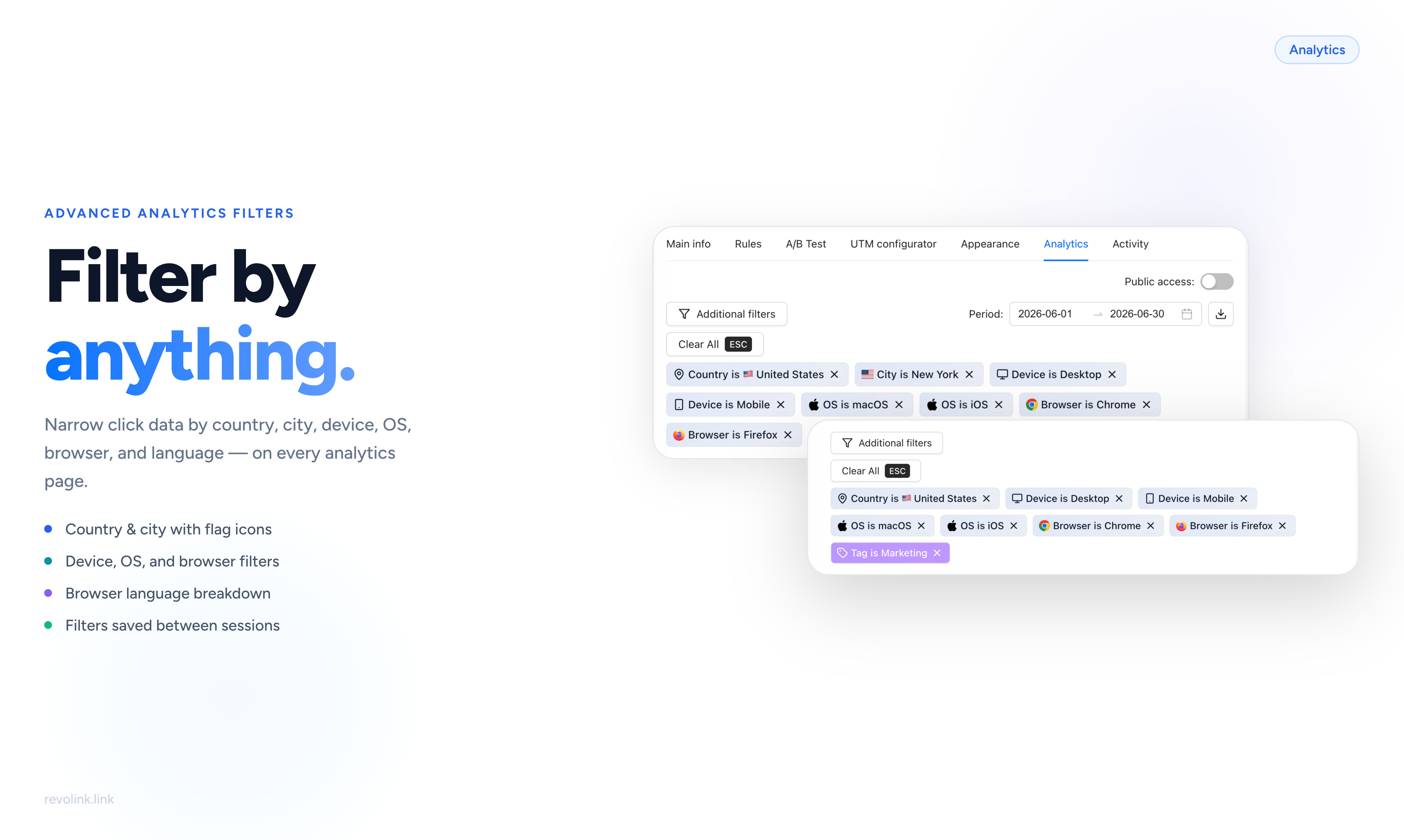
What Changed
The analytics tabs now have a filter bar. You can narrow down the click data shown in every chart and table by applying one or more filters. The filters work on both the per-link analytics tab and the workspace-level statistics page.
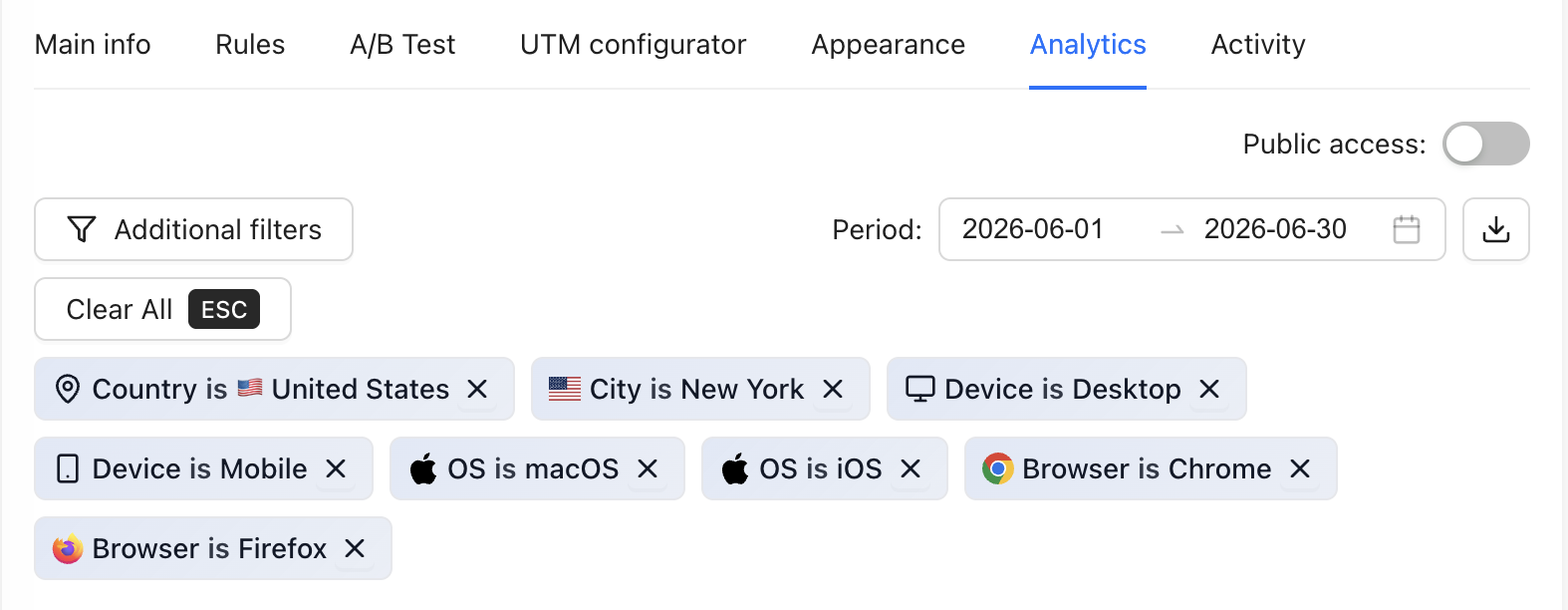
Filters are applied server-side. When you add a country filter, the charts update to show only clicks from that country - not just a client-side highlight of existing data.
Available Filters
Country - multi-select. Pick one or more countries. Each option shows the country's flag. The filter tags in the bar also show flags so you can see at a glance what's active.
City - async search. Type any city name and matching results appear with a flag and country name. You can filter by city without setting a country first - it searches globally.
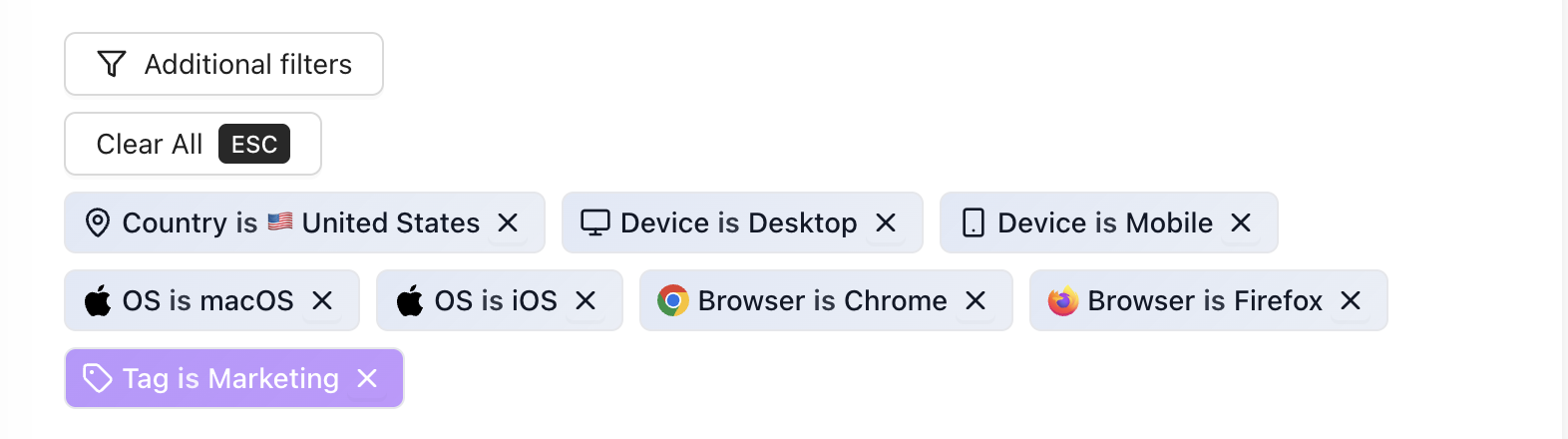
Device - multi-select. Desktop, mobile, tablet, smart TV, console, wearable, and embedded.
OS - multi-select. Windows, macOS, Linux, iOS, Android.
Browser - multi-select. Chrome, Firefox, Safari, Edge, Opera, Brave.
Browser language - multi-select. The language set in the visitor's browser. Useful for seeing how your language routing rules are working in practice.
Combining Filters
Filters stack. Add country: Germany and device: mobile to see only mobile clicks from Germany. Add a browser language filter on top to narrow it further.
All active filters show as chips in the filter bar. Click the × on any chip to remove it. Clear all removes every active filter at once.
Persistent Filters
Your filter selection is saved automatically per page. Close the analytics tab, come back tomorrow - your filters are still there.
This works independently for the per-link analytics tab and the workspace statistics page, so you can have different defaults for each.
To reset: clear all filters in the filter bar, and the saved state is cleared too.
Practical Uses
Campaign breakdown - you ran a paid campaign targeting Germany. Add a country filter and see how those clicks converted compared to your baseline.
Mobile vs. desktop performance - your landing page might perform differently by device. Filter by mobile, check the click-to-conversion rate, compare to desktop.
Language routing QA - you set up language routing rules for English and Spanish visitors. Filter by browser language to verify the right visitors are landing on the right pages.
City-level analysis - running a local campaign for a specific city? Filter by city and see exactly how many qualified visitors you got.
Where to Find It
The filter bar appears at the top of:
- Any Smart Link → Analytics tab
- Workspace → Statistics page
Click Add filter to open the filter picker, select a field, and choose your values.
Related Topics:

Maksym Yaroshchuk
Founder & CEO at Revolink. Writes about link management, marketing automation, and growth strategies.