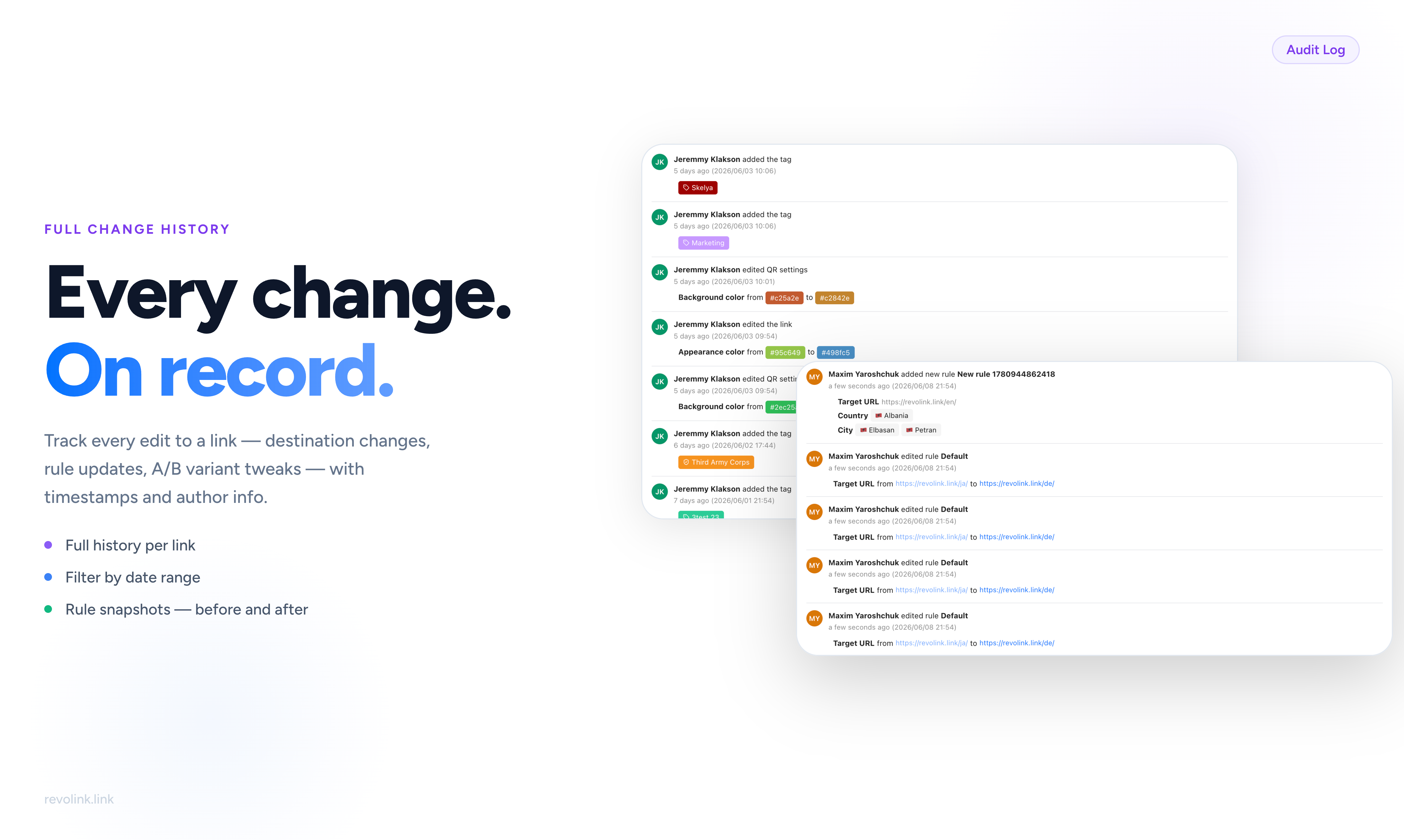
Why You Need to Know What Changed
A short link is rarely static. Over the lifetime of a campaign, a single link might have its destination changed, its routing rules updated, its A/B variants adjusted, its tags reorganized. In a team environment, multiple people might touch the same link across multiple weeks.
When something goes wrong - traffic suddenly dropping, a rule not firing the way it should, visitors landing on the wrong destination - the first question is always the same: what changed, and when?
Without a change history, that question turns into a conversation. Who edited this link? Was it before or after the campaign launched? What did the rule look like before you changed it? Without an audit log, these questions are hard to answer and impossible to verify.
With the Activity tab, every change is recorded automatically - who made it, what exactly changed, and the precise timestamp. No manual logging required, no relying on team memory.
What Gets Tracked
The Activity tab captures every meaningful change to a link's configuration:
- Destination URL changed - the primary redirect target was updated
- Routing rule added, edited, or removed - any change to conditions, destinations, target URLs, or rule order
- A/B variant added, updated, or removed - weight changes, URL changes, variant creation or deletion
- Link enabled or disabled - the link was activated or deactivated
- Tags added or removed - tag changes, including which tag was added or removed
- Appearance settings edited - QR code settings, colors, branding changes
- Link metadata edited - name or description changes
- Public analytics sharing enabled or disabled
Each entry records the author (name and avatar), what the action was, and the exact timestamp with relative time display. For changes to values - like a color code or a URL - the log shows the before and after values side by side.
Reading the Activity Log
Open any link and go to the Activity tab. The log displays in reverse chronological order - newest entries at the top.
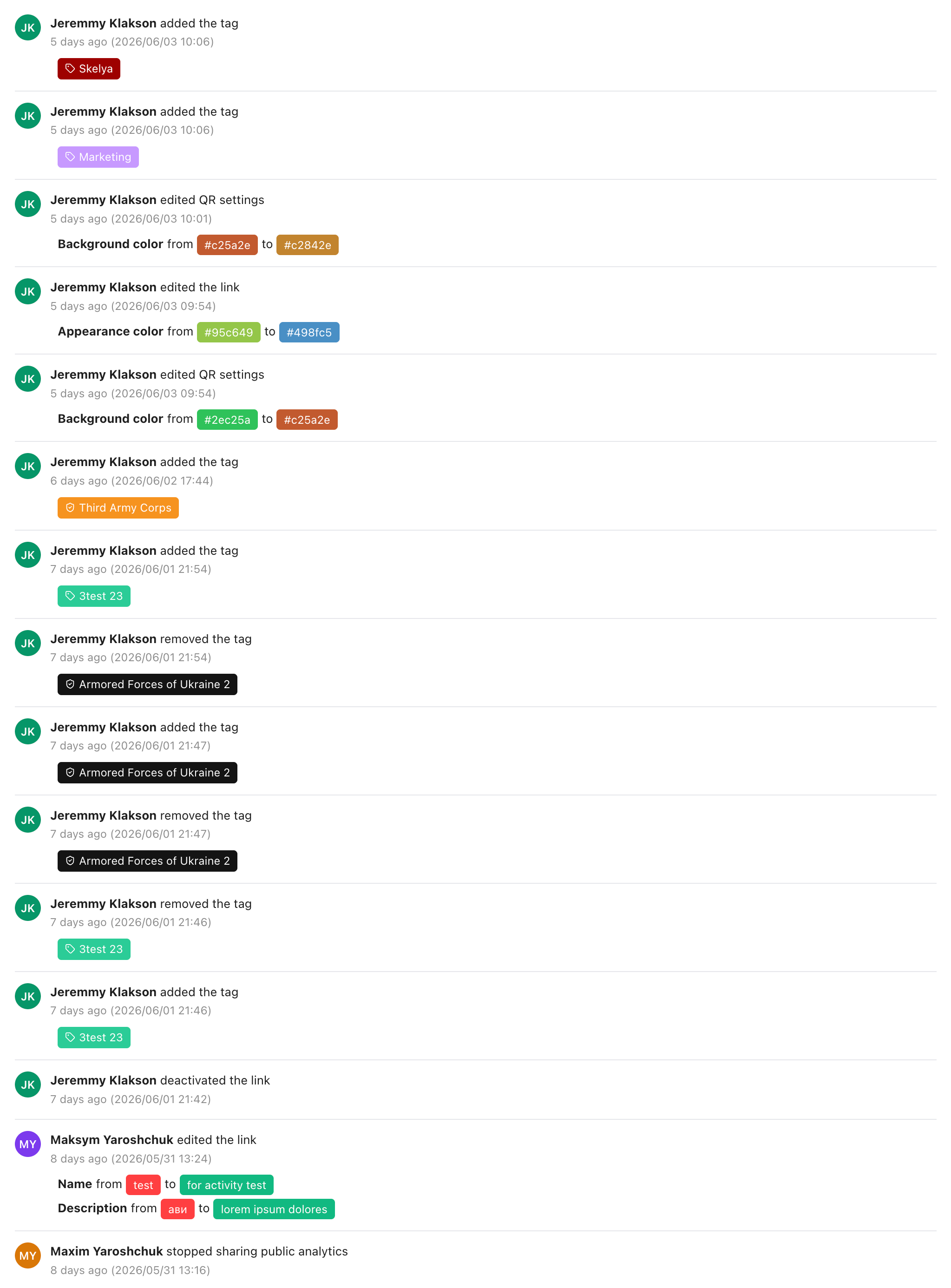
Each entry is self-contained and readable without context: you can see at a glance that Jeremmy Klakson added the "Marketing" tag on a specific date, or that Maksym Yaroshchuk changed the link name from "last" to "for activity test" with the old and new values shown inline.
For changes to structured values - colors, URLs, names - the log shows both what the value was before and what it became after. You don't have to guess or reconstruct what changed; the log tells you exactly.
Filtering by Date Range
The full activity log covers the last 90 days of change history per link. For most auditing purposes, you'll want to narrow it to a specific period - the duration of a campaign, a specific week, or the window around when an issue appeared.
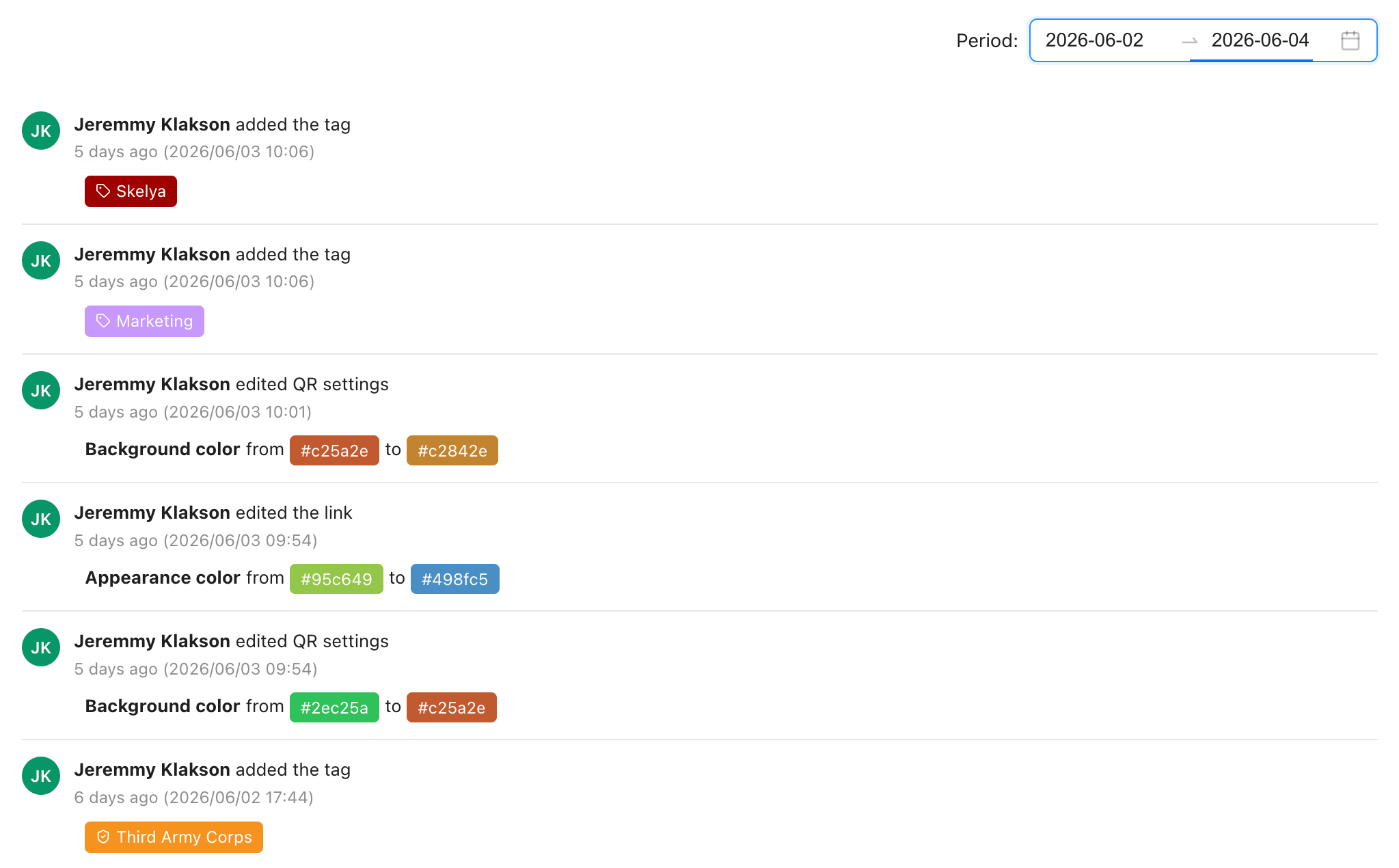
Use the date range picker in the top-right corner to filter the log to any window within the 90-day history. The log updates immediately to show only entries that fall within that range.
This is the view to use for post-campaign audits: set the range to your campaign dates and get a clean record of every change that happened during the campaign - no older noise, no future entries mixed in.
Routing Rule Changes in the Log
Routing rules are the most complex part of a link and the most consequential to change. Adding a condition, changing a target URL, or reordering rules can significantly affect where traffic goes. The Activity tab tracks all of this.
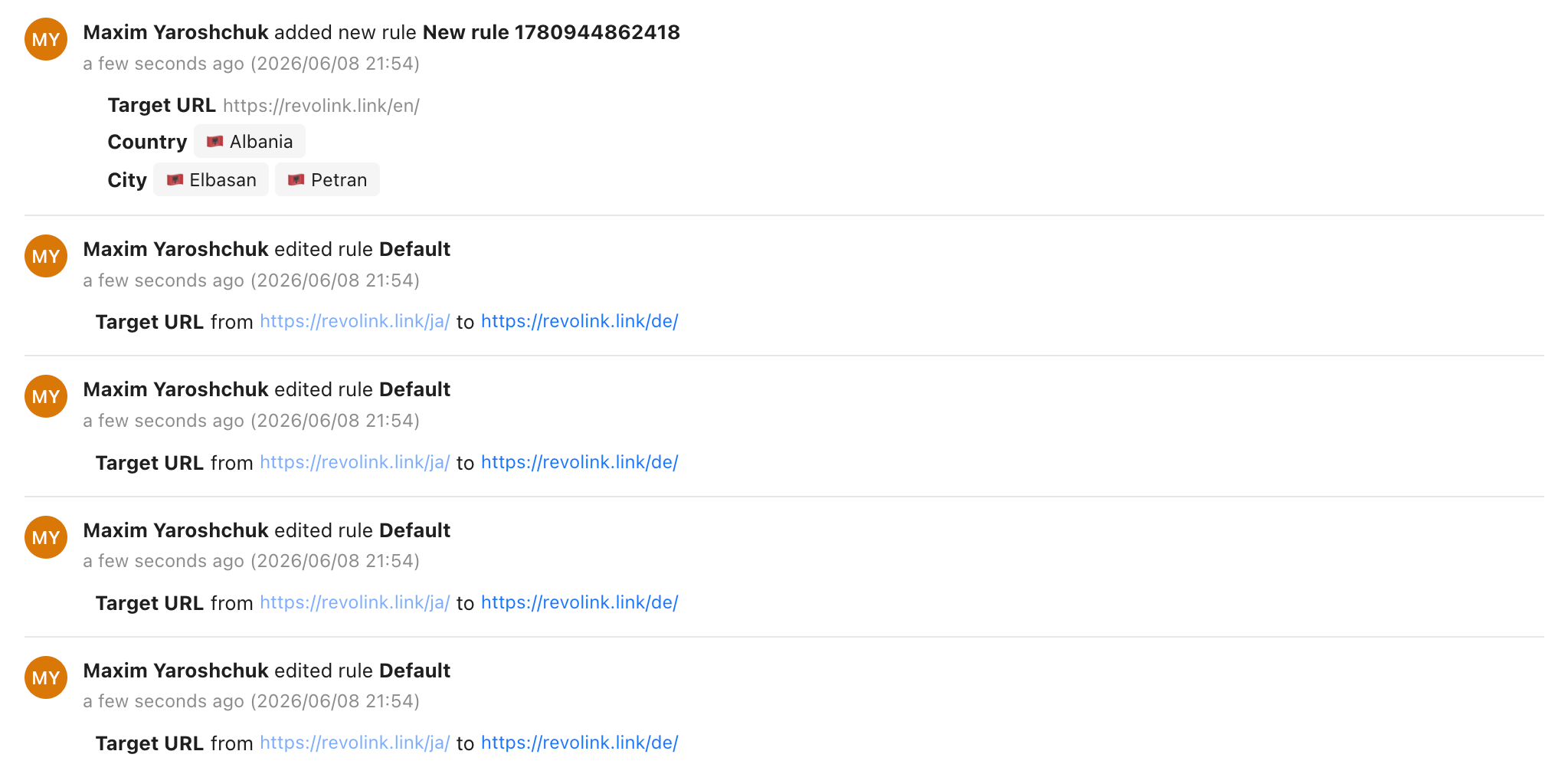
Each rule change entry shows:
- Which rule was affected (by name)
- What changed - for URL changes, the old and new values are shown
- Who made the change and when
In the example above, you can see the exact moment a new rule was created with country and city conditions, and then multiple edits to the Default rule's target URL as it was being adjusted. If traffic unexpectedly shifted after one of those edits, you'd know exactly which change caused it and when it happened.
This is particularly useful for debugging routing issues: if a rule stopped firing as expected, check the activity log around the time the problem started - the change that caused it is almost always there.
Link Activity vs Workspace Activity
Revolink has two distinct activity feeds, and they track different things:
Link Activity (this article) is per-link. It lives in the Activity tab of each individual link and tracks every change to that link's configuration - destination, rules, variants, tags, appearance, metadata.
Workspace Activity is workspace-level. It lives in Workspace Settings → Activity and tracks member events: who joined the workspace, who was removed, who was invited, and when. It doesn't record link-specific changes.
For debugging and campaign auditing, Link Activity is what you need. Workspace Activity is more relevant for tracking team membership and access changes over time.
Real-World Use Cases
Debugging a traffic drop - a link that was routing correctly suddenly sends all traffic to the fallback destination. Open the Activity tab and look at rule changes around the time the drop started. A rule was likely edited or removed - the log will show exactly what changed and who did it, so you can restore the previous configuration.
Campaign post-mortem - after a campaign ends, you want a timestamped record of what the link looked like during it: which rules were active, what the destination was, whether any changes were made mid-campaign. Filter the activity log to the campaign period and you have that record.
Team accountability - in shared workspaces, multiple people can edit the same links. The activity log makes it clear who made each change, so there's no ambiguity when reviewing what happened. It's not about blame - it's about having a clear record that lets teams coordinate without second-guessing each other.
Compliance and auditing - if your organization needs to demonstrate that certain links were not modified during a restricted period (a compliance window, a legal hold, a regulatory review), the activity log provides a timestamped record you can reference and, if needed, export.
Onboarding new team members - when someone new joins and asks how a link is set up, the Activity tab gives them the full history: how it evolved, what decisions were made, what was tried and changed. It's institutional memory for your links.
Frequently Asked Questions
How far back does the activity log go? The log covers the last 90 days of changes per link. Entries older than 90 days are removed automatically.
Can I export the activity log? Not directly from the Activity tab currently. For audit purposes, the log is viewable and filterable within the dashboard.
Does the log track who viewed a link, or only who changed it? Only changes are recorded - edits, creations, and deletions. View events are not tracked.
Is the activity log available on all plan types? Yes - link activity is available across all Revolink plans.
What if I need to restore a previous rule configuration? The Activity log shows what the rule looked like before and after each edit, so you can manually recreate the previous state. Full one-click rule restore is not currently available, but the log gives you everything you need to do it manually.
Can I be notified when a change is made to a link? Not via push notification currently - changes are recorded in the log for you to review on demand.
Related Topics:

Maksym Yaroshchuk
Founder & CEO at Revolink. Writes about link management, marketing automation, and growth strategies.