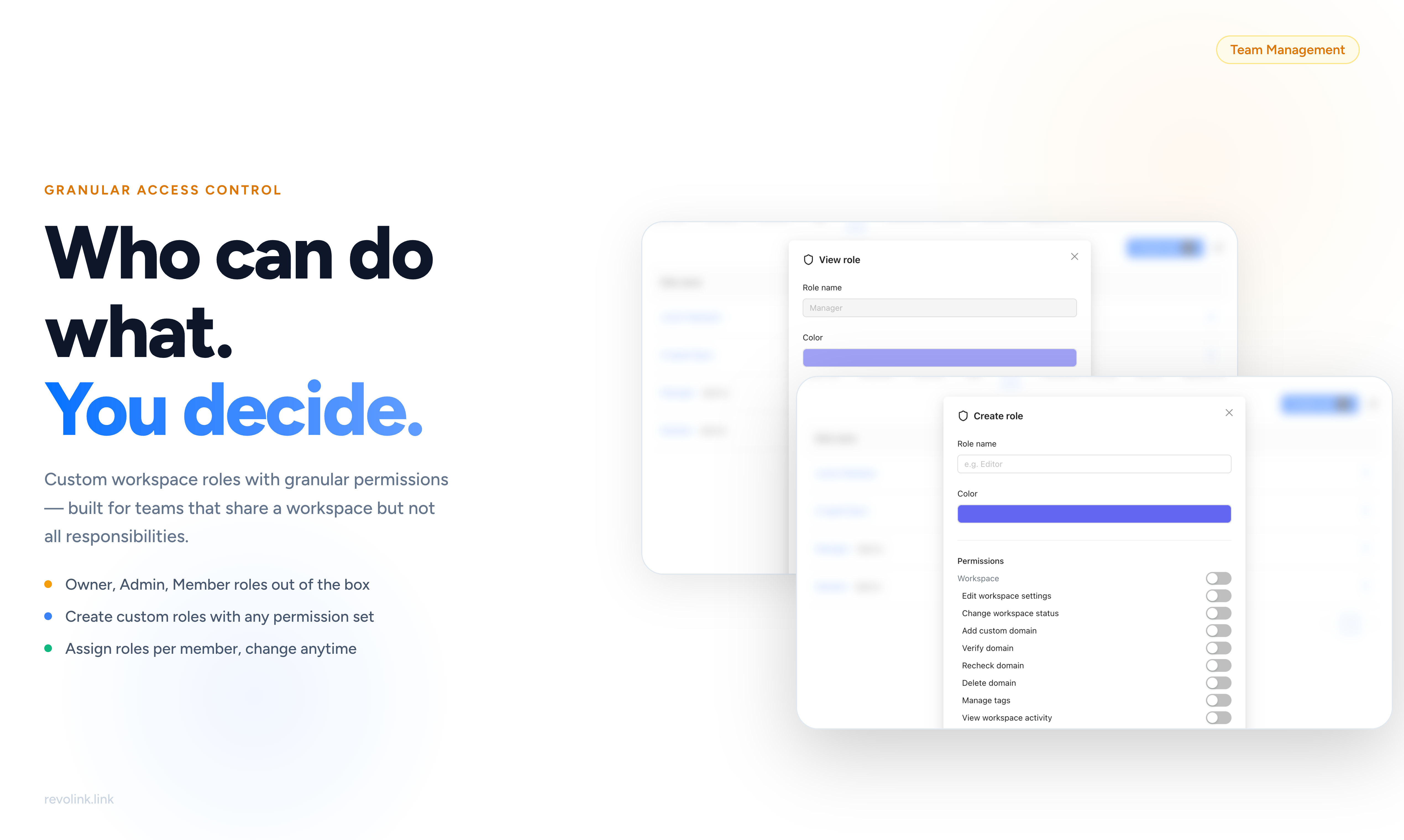
The Problem with All-or-Nothing Access
When a workspace has more than one person, access control becomes a real operational question. Should a freelance designer be able to delete links? Should a junior marketer see conversion revenue data? Should an external analyst have write access just because you needed them to be able to view analytics?
Without roles, your only options are full access or no access. Both create problems. Full access given too broadly means anyone can accidentally (or intentionally) delete links, change routing rules, or modify settings that affect the whole workspace. No access means people can't do their jobs without asking someone else to do things for them.
Roles solve this. Every person gets exactly the permissions their job requires - nothing more, nothing less. A read-only analyst can read. A link editor can create and edit but not delete. A team manager can handle members but not billing. The principle is least-privilege access: the minimum permissions needed to do the job.
Default Roles
Every Revolink workspace starts with three built-in roles that cover most team structures out of the box.
Owner - full control over everything. The Owner can manage billing, delete the workspace, transfer ownership, and change any setting. There is exactly one Owner per workspace, and ownership can be transferred to another member.
Manager - team and workspace management without billing access. Managers can invite and remove members, create and delete links, view all analytics, manage workspace settings, and handle custom domains. They cannot touch billing or delete the workspace itself.
Member - standard contributor access. Members can create and manage their own links and view workspace analytics. They cannot manage other members, change workspace settings, or access billing.
For many teams, these three roles are sufficient. If your team structure is more complex - different departments, external contractors, read-only stakeholders - you can create custom roles.
Viewing a Role's Permissions
To inspect what a role can do, go to Workspace Settings → Roles and click on any role card. The role viewer shows every permission toggle, organized into four groups.
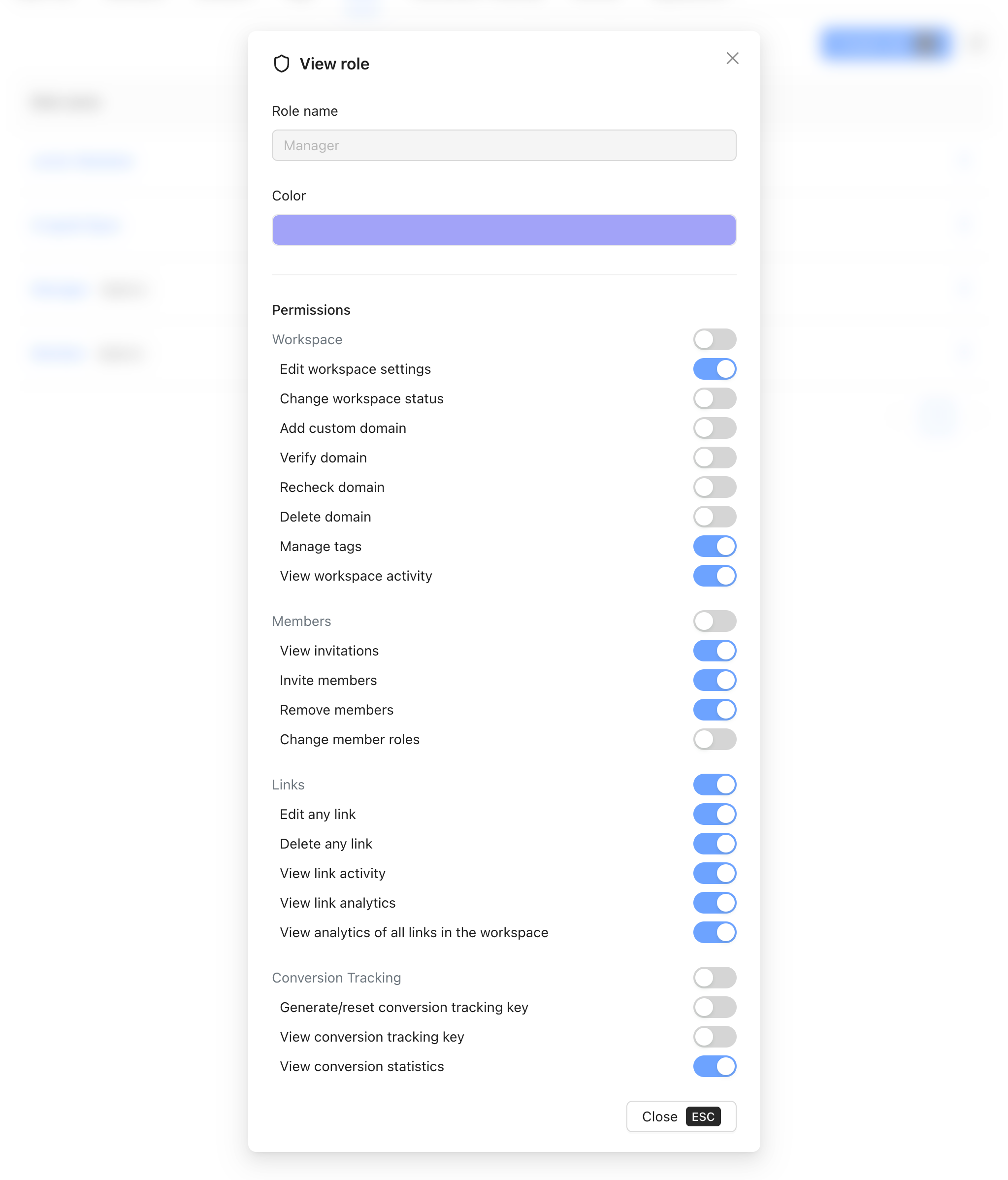
You can see exactly which permissions are active for any role before assigning it to a team member. This is useful when deciding between an existing role and a new custom role - you can compare what each role actually allows.
Creating a Custom Role
Go to Workspace Settings → Roles and click Create role.
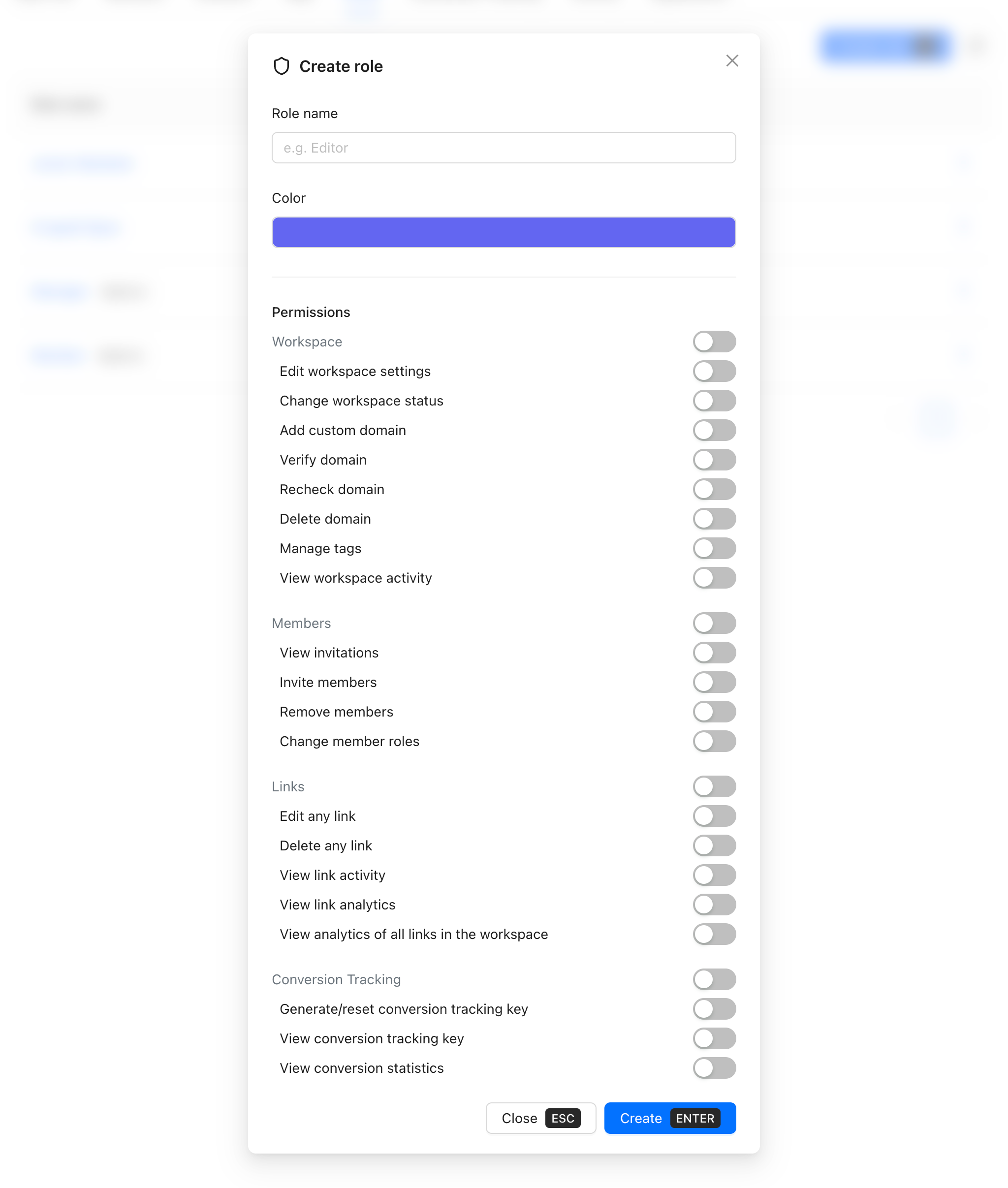
The creation modal has three sections:
Role name - give the role a name that describes what it does, not who holds it. Editor, Analyst, Campaign Manager, Junior Marketer are all good names. Clear role names help everyone understand at a glance what a person's access level is.
Color - a color swatch used to visually identify the role in the members list. Pick something distinct from your other roles so they're easy to differentiate at a glance.
Permissions - all toggles start off. Enable only what this role needs. The four groups - Workspace, Members, Links, and Conversion Tracking - let you build roles that are narrowly scoped to a specific function.
Once saved, the role is immediately available to assign to any workspace member.
Permissions Reference
Permissions are organized into four groups. You can enable a full group at once or set each toggle individually.
Workspace
| Permission | What it allows |
|---|---|
| Edit workspace settings | Change workspace name, branding, and general settings |
| Change workspace status | Enable or disable the workspace |
| Add custom domain | Connect a custom short domain |
| Verify domain | Run domain verification |
| Recheck domain | Re-trigger domain DNS check |
| Delete domain | Remove a connected domain |
| Manage tags | Create, rename, and delete tags |
| View workspace activity | See the workspace-level member activity feed |
Members
| Permission | What it allows |
|---|---|
| View invitations | See pending invitations sent to new members |
| Invite members | Send invitations to new members |
| Remove members | Remove members from the workspace |
| Change member roles | Assign or change roles for any member |
Links
| Permission | What it allows |
|---|---|
| Edit any link | Edit links created by any workspace member (not just own) |
| Delete any link | Delete links created by any workspace member |
| View link activity | See the per-link audit log and change history |
| View link analytics | See click stats for individual links |
| View analytics of all links in the workspace | See analytics across all workspace links, not just own |
Conversion Tracking
| Permission | What it allows |
|---|---|
| Generate/reset conversion tracking key | Create or rotate the workspace conversion key |
| View conversion tracking key | See the current conversion key value |
| View conversion statistics | Access conversion funnel, event stats, and revenue data |
Note: a member without "Edit any link" can still create and edit their own links. That permission controls access to other members' links.
Assigning a Role to a Member
Go to Workspace Settings → Members. Find the member whose role you want to change and click on their current role badge. A modal opens where you can select a different role.

Role changes take effect immediately - the member doesn't need to log out or refresh their session. Their permissions update on the next action they take. There's no confirmation sent to the member; the change is silent from their perspective.
You can change a member's role as many times as needed. There's no limit on role changes.
Practical Role Configurations
Read-only analyst - enable View link analytics, View analytics of all links in the workspace, and View conversion statistics. Leave everything else off. The analyst can see all the numbers they need to do their job without being able to touch any link configuration.
Campaign editor - enable Edit any link, View link activity, View link analytics, View analytics of all links, View conversion statistics, and Manage tags. This person can create and manage campaign links, organize them with tags, and monitor performance - but can't delete links or manage team members.
Junior marketer - enable View link analytics and View analytics of all links. They can see performance data across the workspace but can only manage their own links. Good for team members who are learning the platform or whose work is reviewed before links go live.
Agency client view - enable View link analytics for a single client's links and View conversion statistics. Clients can check their own campaign performance without seeing other clients' data or touching any configuration.
Compliance officer - enable View link activity, View link analytics, View analytics of all links, View workspace activity. They have read-only visibility into everything - changes, performance, team actions - without the ability to modify anything.
Who Should Hold Which Role
Roles work best when they reflect actual job functions, not seniority. A senior designer and a junior marketer might need the same link permissions but different analytics visibility. A department head might need full member management but never touch individual link settings.
When in doubt, start with fewer permissions and add more as the person's workflow requires them. It's easier to expand access than to discover someone had access they shouldn't have.
Frequently Asked Questions
Can I change someone's role after they've joined? Yes - at any time from the Members tab, as many times as needed.
What happens to a member's links if their role is downgraded? Links they've created stay exactly as they are. Role changes only affect what they can do going forward, not what they've already created.
Can I delete or rename the default roles? No. Owner, Manager, and Member are built-in and cannot be deleted or renamed. Custom roles can be deleted.
Can a workspace have multiple Owners? No. There is exactly one Owner per workspace.
What's the difference between "Edit any link" and being able to edit your own links? All members can create and edit their own links by default. "Edit any link" is the permission that lets someone edit links created by other workspace members.
Can I restrict a member to specific links only, not all links in the workspace? Not currently - permissions are workspace-wide, not per-link. If you need link-level isolation (e.g., for separate clients), the recommended approach is to use separate workspaces.
Are role changes logged anywhere? Role assignments and changes to member roles appear in the workspace-level activity feed under Workspace Settings → Activity.
Related Topics:

Maksym Yaroshchuk
Founder & CEO at Revolink. Writes about link management, marketing automation, and growth strategies.